
How to Manage Your Subscription
This guide walks you through accessing your user details, viewing your subscription information, updating your plan, canceling your subscription, and managing your payment method. Everything you need to control your Greeksinsight account is in one place.
Before you start
- You must be logged into your Greeksinsight account.
- Have your payment method details handy if you plan to update billing information.
- If canceling, note that you can continue using Greeksinsight until your current subscription period ends.
Step 1: Navigate to user details
1.1 Access your profile
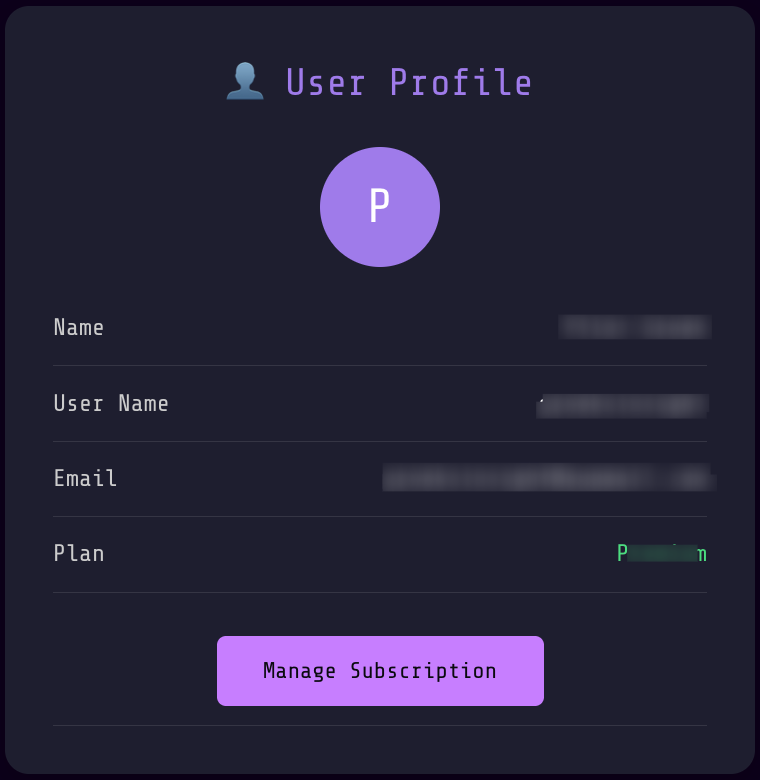
From the main dashboard or any page, look for your profile icon located in the bottom-left corner of the screen and click on it to access your profile.

1.2 Check and access you profile details like:
- “Name”
- “User Name”
- “Email”
- “Plan Type”
Step 2: Access the Manage Subscription section
2.1 Locate the “Manage Subscription” button
On your User Details/Account Settings page, you will see a button labeled:
- “Manage Subscription”
Click this button to proceed to the Subscription Management page.
Step 3: View your subscription details
3.1 Review your subscription information
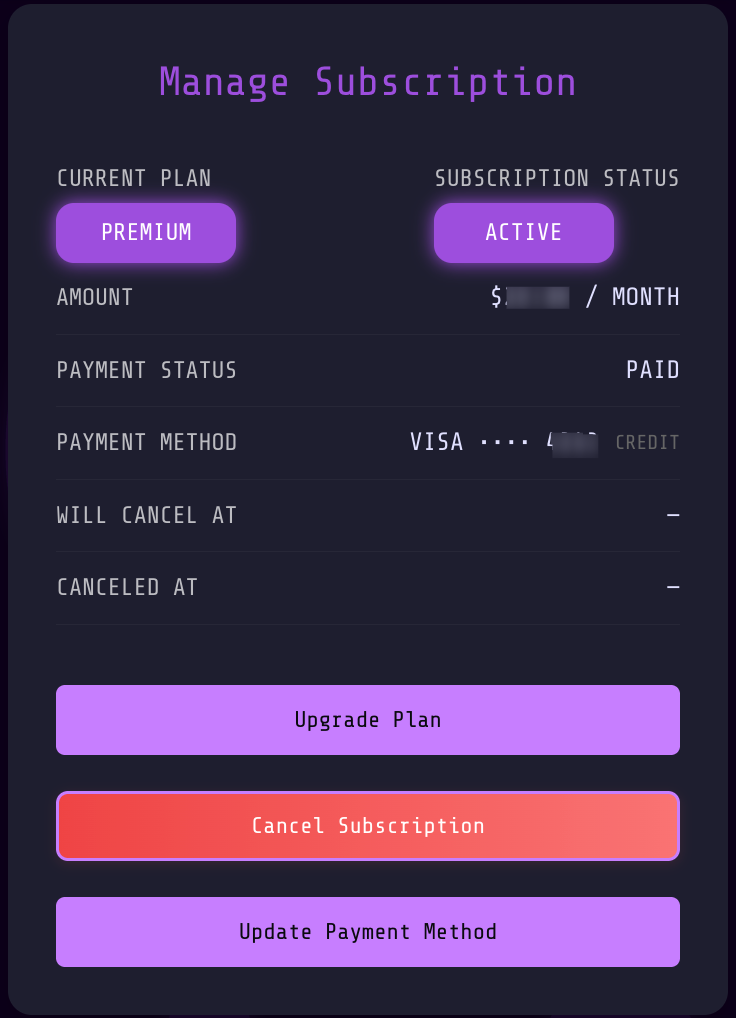
Once you click “Manage Subscription,” you will see a detailed view of your current subscription, including:
Current Plan
- Plan Name: The name of your active plan (e.g., “Pro Plan”, “Premium Plan”).
- Plan Description: A brief description of included features.
Subscription Status
- Status: Shows if your subscription is:
- Active — You are currently subscribed and have access to all features.
- Paused — Your subscription is temporarily on hold.
- Canceled — Your subscription has been canceled (but you may still have access until the period ends).
- Expired — Your subscription period has ended.
Billing Information
- Amount: The cost per billing cycle (e.g., $10).
- Frequency: How often you are charged:
- Monthly — Charged every month.
- Yearly — Charged once per year.
- Payment Mode: Tells the payment mode use (Credit card, debit card etc.)
- Last 4 digit of Card: Last 4 digits of your cards
Cancellation Information
- Cancellation Date: When you canceled (if applicable).
- Cancellation Effective Date or Access Until: The date when your access will end or when the cancellation takes effect.
- Note: You can continue using Greeksinsight until this date, even if you have canceled.
3.2 Understanding your subscription timeline
- Active subscription: You have full access now and will be charged on the next billing date.
- Pending final cancellation: You have access until the date shown. After that date, you will no longer have access.
- Expired: Your subscription has ended. You will need to renew to regain access.
Step 4: Upgrade your plan
4.1 Locate the “Upgrade Plan” button
On the Subscription Management page, you will see a button to upgrate your plan, which will navigate you to the Plans section to updgrade/downgrade/switch among the vailable plans.
Step 5: Cancel your subscription
5.1 Locate the “Cancel Subscription” button
On the Subscription Management page, you will see a button labeled:
- “Cancel Subscription”
Click this button to proceed with cancellation.
5.2 Review the cancellation modal
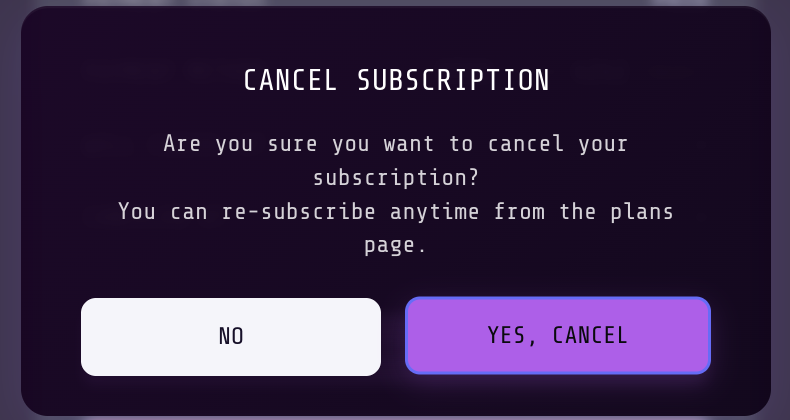
A modal (popup window) will appear asking you to confirm the cancellation. The modal will show:
- Warning message: Something like “Are you sure you want to cancel?”
- What happens: Explanation that you can use Greeksinsight until your current billing period ends.
- Confirmation buttons:
- “Cancel Subscription” or “Yes, Cancel” — Confirms the cancellation.
- “No” — Closes the modal without canceling.
5.3 Confirm the cancellation
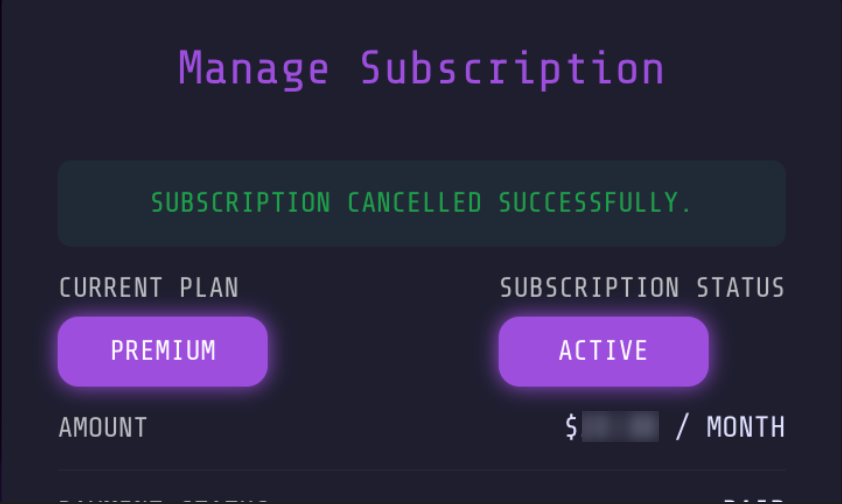
Click “Yes, Cancel” in the modal to finalize the cancellation.
What happens after cancellation:
- Your subscription status changes to “Canceled” or “Pending Cancellation”.
- You will see the cancellation effective date (when your access ends).
- You can continue using Greeksinsight with all features until that date.
- After the date, you will lose access unless you renew.
Step 6: Update your payment method
6.1 Locate the “Update Payment Method” button
On the Subscription Management page, you will see a button labeled:
- “Update Payment Method”
Click this button to update your payment details.
6.2 Access the payment form
You will be taken to a secure payment form where you can:
- Add a new credit card — Enter your card details (number, expiry, CVV).
- Remove an existing card — Delete a saved payment method.
- Make a card primary — Set which card is used for automatic charges.
- Update billing address — Change your address on file.
6.3 Enter new payment information
Fill in the required fields:
- Card Number: Your credit/debit card number (16 digits for most cards).
- Cardholder Name: The name on your card.
- Expiration Date: Format is usually MM/YY (e.g., 12/26).
- CVV/Security Code: The 3–4 digit code on the back of your card.
- Billing Address: Your address (required by payment processors for fraud prevention).
Security note: Your payment information is encrypted and processed securely. Greeksinsight does not store full card numbers.
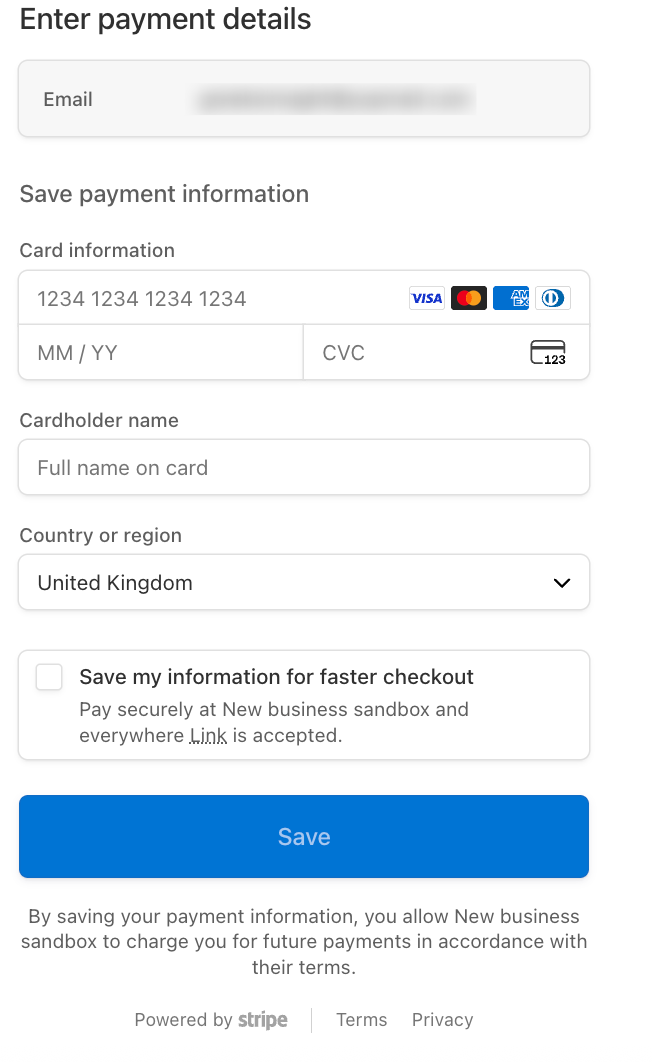
6.4 Save and confirm
Click “Save”, “Update Payment Method”, or “Confirm” to finalize the change.
- You will see a confirmation message.
- Your new payment method will be used for the next automatic charge.
- You will receive a confirmation email.
Common scenarios
“I want to upgrade to Premium”
- Go to Manage Subscription.
- Click “Upgrade Plan” button.
- Review the plan change and pricing.
- Click “Confirm” to apply the upgrade.
- You will be charged the difference immediately or on your next billing date.
“I want to downgrade to save money”
- Go to Manage Subscription.
- Select the lower-tier plan.
- Confirm the change.
- You may receive a prorated refund for the unused portion of your current plan.
“I want to cancel but keep using for a bit”
- Go to Manage Subscription.
- Click “Cancel Subscription”.
- Confirm in the modal.
- You keep access until the cancellation effective date shown.
- No additional charges will occur.
“I want to change my payment card”
- Go to Manage Subscription.
- Click “Update Payment Method”.
- Enter your new card details.
- Click “Save”.
- The new card will be used for future charges.
Troubleshooting
“The Manage Subscription button is missing”
- Make sure you are logged in.
- Check that you have an active or canceled subscription (free accounts may not have this option).
- Try refreshing the page.
- Contact support if the button still doesn’t appear.
“I can’t update my payment method”
- Verify your card details are correct (number, expiration, CVV).
- Ensure your billing address matches your card issuer’s records.
- Try a different payment method or browser.
- If the issue persists, contact your card issuer or support.
“My cancellation date passed but I still have access”
- There may be a delay in the system. Refresh the page or log out and back in.
- Check your email for a final access notice.
- Contact support if you still have unexpected access after 24 hours.
“I want to reactivate after canceling”
- Look for a “Reactivate” button on your Subscription Management page or dashboard.
- If you canceled more than a few days ago, you may need to subscribe again as a new customer.
- Contact support for assistance with reactivation.
“I see an unexpected charge”
- Review your subscription history in Manage Subscription to see all charges.
- Check the billing date and amount match your plan.
- If there’s an error, contact support with your order details.
Security & privacy notes
- Payment security: Your payment information is encrypted and never stored in full by Greeksinsight.
- Authorized charges: Only charges authorized by your subscription plan will appear on your statement.
- Cancellation = no charges: After cancellation, no further automatic charges will occur after your cancellation effective date.
- Refund policy: Refunds follow our refund policy; contact support for details.
Support & FAQs
How long after canceling until my access ends? Your access continues until the cancellation effective date (end of your current billing period). You can use all features until then.
Can I change my plan mid-cycle? Yes, most plan changes are allowed immediately. Any billing adjustments are prorated.
What payment methods do you accept? We accept all major credit cards (Visa, Mastercard, American Express, etc.) and may support additional payment methods depending on your region.
Can I get a refund if I cancel? Refunds depend on our refund policy. Contact support at contact@greeksinsight.com for details on your specific situation.
What if I accidentally canceled? You can reactivate your subscription from the Manage Subscription page if it’s still within your cancellation grace period. After that, you’ll need to subscribe again.
Need help?
- Contact support: Reach out to contact@greeksinsight.com with details about your issue.
- Visit the Help section: Browse other guides and FAQs.