
How to Reset Your Password
Forgot your Greeksinsight password? No problem. This guide walks you through the two-step process to reset your password securely using your username and a verification code.
Before you start
- Have your Greeksinsight username or email address handy.
- Make sure you have access to the email address associated with your account (you’ll receive a password reset code there).
- Allow a few minutes for the code email to arrive.
Step 1: Request a password reset code
1.1 Go to the login page
Navigate to the Greeksinsight login page and click “Forgot Password?” or “Reset Password” link.
[Screenshot: Login page with “Forgot Password” link]
1.2 Enter your username
On the password reset form, enter your Greeksinsight username (the unique identifier you chose when signing up, not your email).
- What: Your account username.
- Format: Use the exact username — it is case-sensitive in some systems, so match the capitalization if you remember it.
- Tip: If you forgot your username, try using your email address if the form accepts it, or contact support.
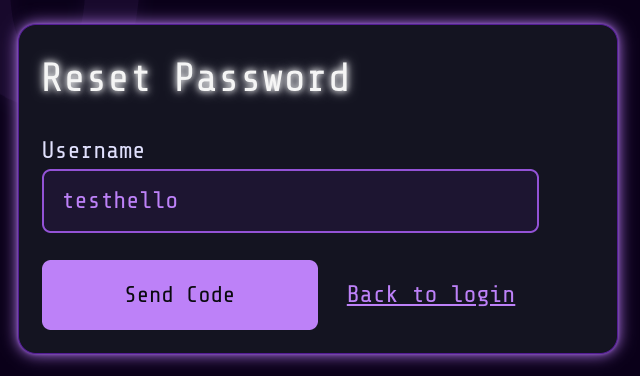
1.3 Click “Send Code”
The system will send a password reset code to the email address linked to your account. You should receive an email from Greeksinsight within a few minutes.
In the email, you will see:
- A password reset code (numeric).
Didn’t receive the code?
- Check spam/promotions folder — The email may be caught by filters.
- Verify your email is correct — If you’re unsure, contact support to confirm your account email.
- Wait a few minutes — Sometimes email takes a moment to arrive.
- Request a new code — You can usually request another code after a short wait (typically 5–10 minutes).
Step 2: Enter verification code and set new password
2.1 Access the password reset form
After requesting the code, you should see a form asking for:
- Verification Code — The code you received in the email.
- New Password — Your desired new password.
Or, you may receive a link in the email that takes you directly to this form.
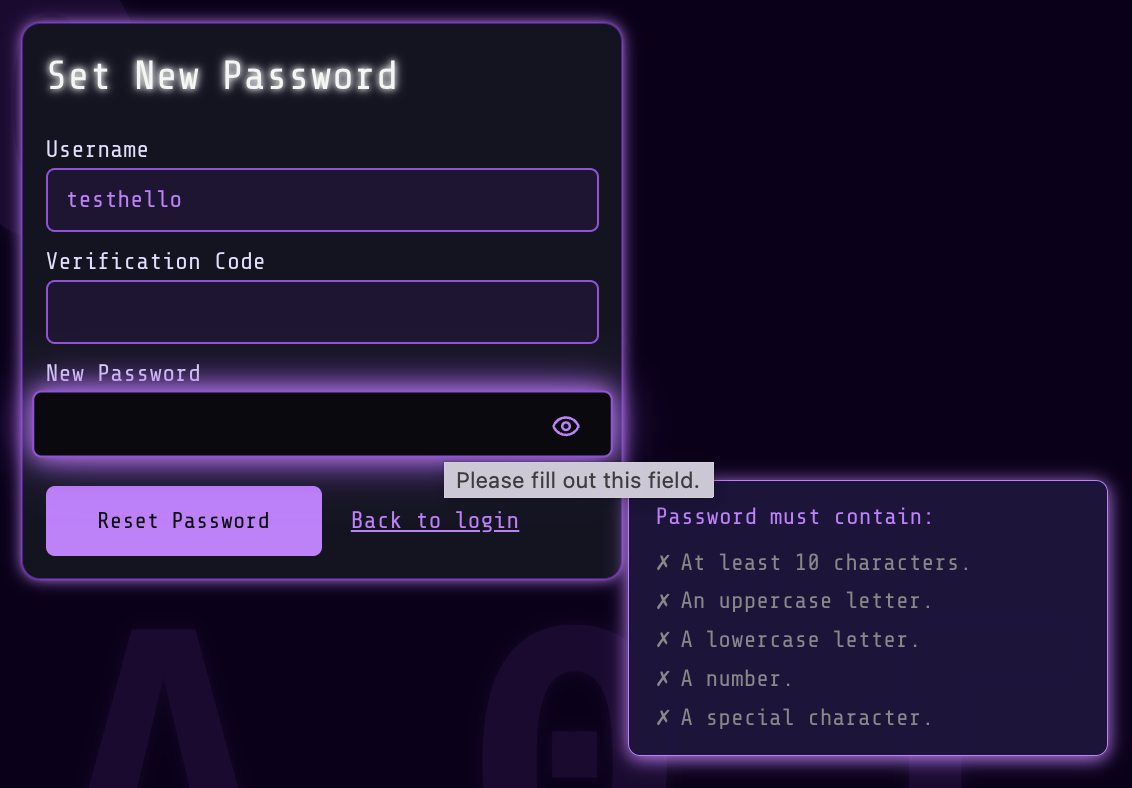
2.2 Enter the verification code
Copy the code from the email and paste it into the Verification Code field. Codes are usually:
- Time-limited (typically valid for 10–30 minutes).
- One-time use (once you reset your password, the code expires).
Tips:
- Copy and paste to avoid typos.
- Remove any spaces or line breaks.
- If the code expired, request a new one.
2.3 Enter your new password
In the New Password field, create a strong, new password. The password must meet these requirements:
- At least 10 characters — Use a mix of letters, numbers, and symbols for better security.
- At least one uppercase letter (A–Z) — e.g., “M” in “MyPassword123”.
- At least one lowercase letter (a–z) — e.g., “y” in “MyPassword123”.
- At least one special letter (a–z) — e.g., “#” in “#MyPassword123”.
- At least one number (0–9) — e.g., “123” in “MyPassword123”.
Password tips:
- Use a passphrase (e.g., “BlueSky#2025Rain”) rather than a predictable pattern.
- Avoid common sequences (e.g., “abc123”, “qwerty”).
- Do not reuse passwords from other accounts or your old Greeksinsight password.
- Consider using a password manager to generate and store strong passwords.
Show/Hide Toggle:
- Click the eye icon to reveal or hide the password while typing. This is helpful on mobile devices to verify you’re typing correctly.
2.5 Submit the form
Once all fields are valid and requirements are met, click “Reset Password” button.
- The button may be disabled until all fields are correct — if so, review the form for any missing or invalid inputs.
2.6 Confirmation
You should see a success message like:
“Your password has been reset successfully. You can now log in with your new password.”
Next steps
- Log in with your new password — Go to the login page and use your username (or email) and your new password.
- Update your password manager — If you use a password manager, save your new password there.
- Log out from other devices (optional) — For added security, go to Settings → Active Sessions or Devices and log out from any devices you don’t recognize.
Troubleshooting
“Code is invalid or expired”
- Request a new code and complete the reset within the time limit (usually 10–30 minutes).
- Make sure you copied the entire code without extra spaces.
“Password does not meet requirements”
- Ensure your password has:
- At least 10 characters
- One uppercase letter
- One lowercase letter
- One special character
- One number
- If requirements still seem unclear, contact support.
“I never received the reset code email”
- Check your spam/promotions folder and mark Greeksinsight emails as “not spam.”
- Verify the email address associated with your account is correct.
- Try requesting a new code after a few minutes.
- If the issue persists, contact support at contact@greeksinsight.com.
“I can’t access the reset form”
- Make sure you clicked the correct “Forgot Password?” link from the official Greeksinsight login page.
- Clear your browser cache and cookies, then try again.
- Try a different browser or device.
- If problems continue, contact support.
Security & privacy notes
- Never share your password reset code — Greeksinsight staff will never ask for it.
- Use a secure connection — Always reset your password on a secure, trusted device and network (not public WiFi).
- Change password periodically — Update your password every 3–6 months for better security.
- Review account activity — After resetting, check your account settings for any unusual activity.
If you need further help
- Contact support: Reach out to contact@greeksinsight.com with your username and the issue you encountered.
- Visit the Help section: Check the Help menu for additional guides and FAQs.